

The email address on a quote, invoice, or booking confirmation is one of the smallest details a customer notices - and one of the most telling. A message from you@company.com reads as a real, accountable business. The same message from a free personal address, or worse, a company address that looks slightly off, raises a quiet doubt before anyone reads a single sentence.
Using Gmail's interface with your own domain solves the professionalism problem, but the way you set it up also affects whether your mail authenticates cleanly, whether you can manage staff access properly, and whether the setup survives someone leaving the company. That makes this a business decision, not just a preference.
Google Workspace vs. forwarding hacks
There are two common ways businesses put Gmail behind a custom domain. The first is Google Workspace: a paid subscription that gives every user a real mailbox at your domain, with Gmail, Calendar, and Drive included. The second is a free workaround - forwarding all mail from the domain to a personal Gmail account and sending replies through Gmail's "send mail as" feature.
Forwarding can work for a single founder testing an idea. It rarely survives contact with a growing team. Replies can show "via" another domain, shared logins get passed around outside any real access control, and there is no admin console to remove someone's access the day they leave.
A common scenario: a founder sets up forwarding on day one, then hires a bookkeeper and a part-time assistant who both need to see invoices@company.com. Rather than create real accounts, everyone gets the same password to one personal Gmail inbox. Six months later nobody remembers who has access, the assistant leaves on bad terms, and the only fix is resetting a password everyone shares - including the founder, mid-invoice-season.
What Workspace actually gives you
- A real mailbox per person, with its own login, two-factor authentication, and device management.
- Shared inboxes and role addresses like hello@ or bookings@ that do not depend on one person's personal account.
- An admin console to add, suspend, or remove access instantly when staff change.
- Calendar and Drive under the same domain, so scheduling and file sharing carry the same professional identity as email.
- Cleaner, better-documented authentication, because Google issues DKIM keys directly for the domain you manage.
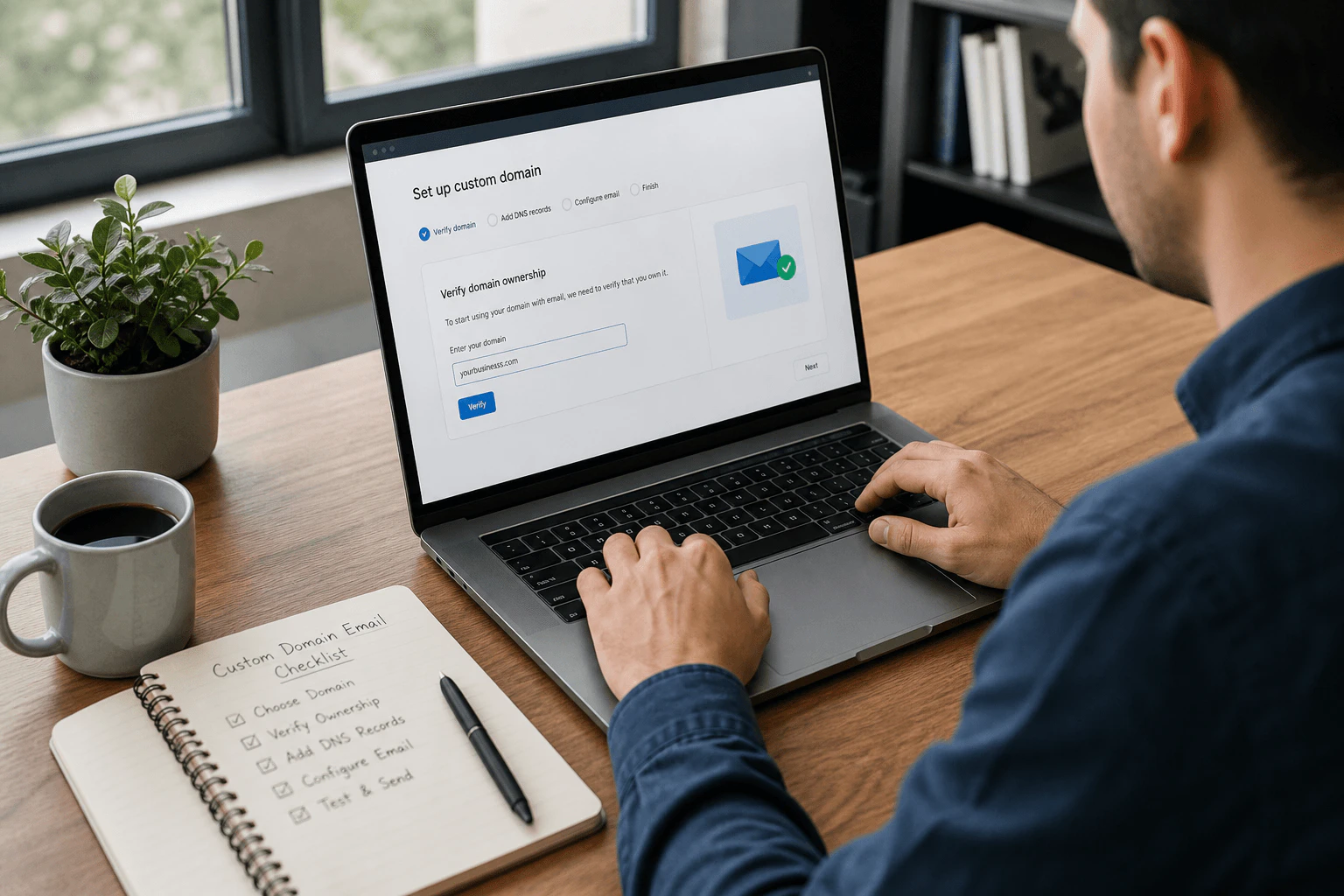
Setting it up without breaking existing mail
- Buy or confirm the domain, then start a Workspace subscription and verify ownership with the TXT record Google provides.
- Create user mailboxes and any shared addresses your team needs before touching mail routing.
- Update MX records to point to Google's mail servers, ideally during a low-traffic window.
- Send and receive test messages from an external address before telling the whole team to switch over.
- Turn on DKIM in the admin console and publish SPF and DMARC at your DNS provider once mail flow is confirmed working.
Migrating an existing mailbox without losing history
Most teams switching to Workspace already have mail sitting somewhere - a hosting cPanel inbox, another provider, or that same forwarded personal Gmail. Google's data migration tools can import old mail directly into new Workspace accounts via IMAP, so staff do not lose years of threads on cutover day. Run the import before you flip MX records, verify a sample of migrated folders, and only then move on to the DNS change. Skipping this step is how teams end up with two disconnected mail histories and a support headache six months later.
Do not skip authentication just because Google hosts the mailbox
Moving to Workspace does not automatically protect deliverability. SPF still needs to list Google's sending servers alongside anything else that sends as your domain - a CRM, a booking tool, a newsletter platform. DKIM needs to be explicitly enabled per domain in the admin console; it is not always on by default. Skipping this step is one of the most common reasons a brand-new Workspace domain still lands in spam during its first weeks.
A common early symptom: a two-person startup moves to Workspace, adds Google's SPF include, but forgets that its booking tool also sends confirmation emails as the domain. Those confirmations were never re-added to SPF and start failing authentication the same week, even though Gmail-sent mail works perfectly. The lesson is not that Workspace introduced a new risk - it is that DNS records need revisiting every time a sending tool changes, not just once at launch.

Common mistakes during the switch
- Changing MX records before creating mailboxes, so incoming mail has nowhere to land.
- Leaving an old forwarding rule active, causing duplicate or looping messages.
- Forgetting to update SPF when other tools (CRM, forms, newsletter) still send as the domain.
- Sharing one login among several staff instead of creating individual accounts with proper permissions.
- Migrating mailboxes after the MX cutover instead of before, so staff lose access to recent history for days.
When Microsoft 365 makes more sense
Workspace is not the only option. If a team already lives in Outlook, Teams, and Word, Microsoft 365 under the same domain often causes less friction than retraining everyone on a new suite. The underlying principle is identical either way: a real mailbox per person, clean DNS records, and an admin console that survives staff changes.
The visible win is a professional address on every quote and confirmation. The real win is a mail system your business actually controls - one where access, authentication, and deliverability are set up on purpose instead of inherited from whatever was quickest at the time. Killer Click helps pick the stack that matches how a team actually works, then wires the DNS so mail arrives exactly where it should.